

I left Adobe behind and don’t miss it, except for this one feature nobody can match
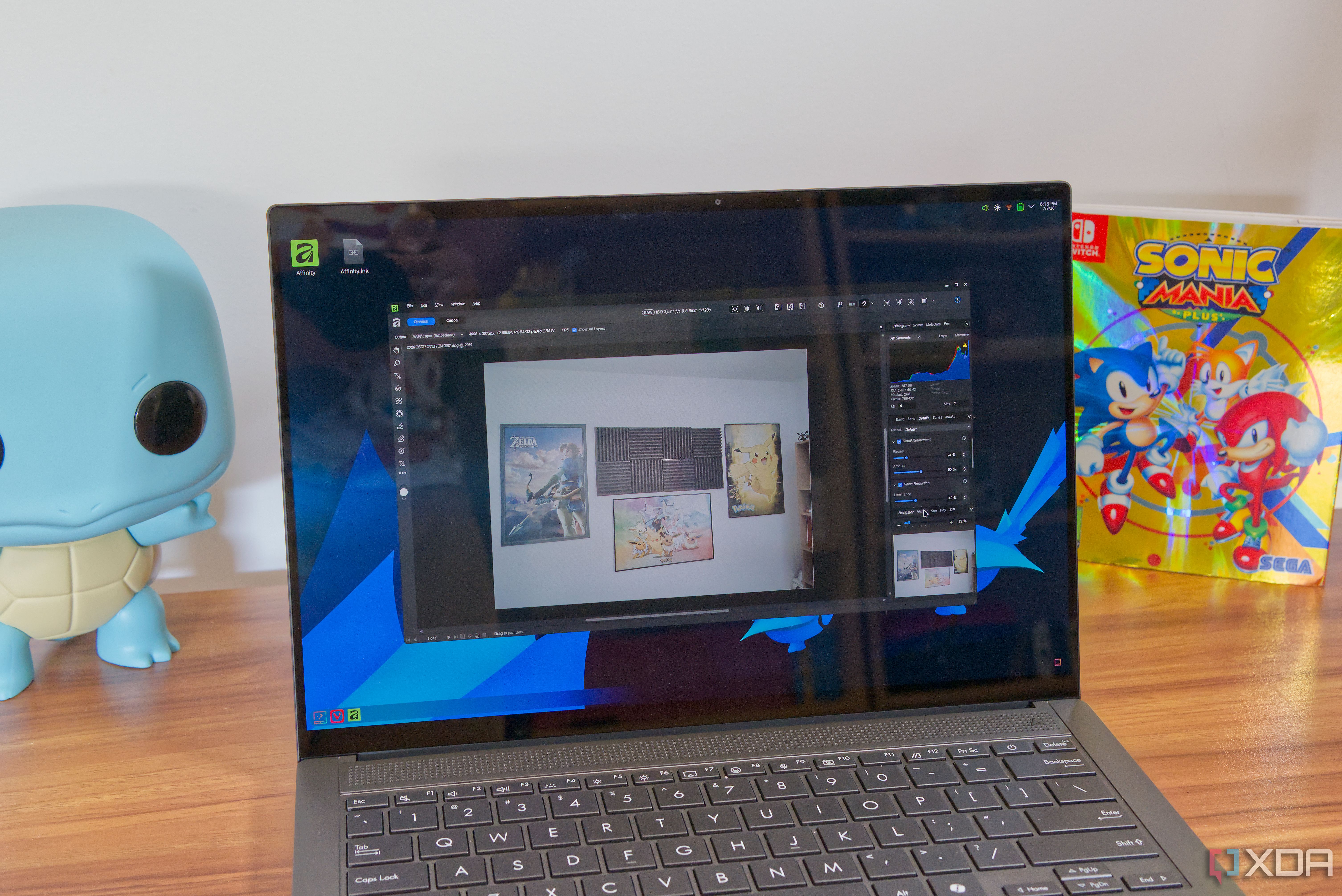
For a few years, I relied heavily on Adobe’s Photoshop and Lightroom to edit the photos and images I use at XDA. The subscription price was (and still is) covered by my work, but for over half a year now, I’ve barely ever touched those programs, and instead, I use Affinity for all my editing. While I keep Adobe’s apps installed on my computer for a rainy day, I never reach for them unless in case of extreme necessity, and there’s nothing I really miss. Except one particular feature: noise reduction for RAW photos. It’s the one thing no competitor seems to be able to match, and it’s the only thing I miss, if only occasionally.
Leaving Adobe isn’t easy
But there are plenty of alternatives
I had never wanted to pay for Adobe’s tools, but as time went on, the reasons for leaving them kind of started piling up for me. Whether it was getting into pointless feuds with Pantone, controversial AI policies (though later updates clarified the situation), or the predatory and expensive pricing model, I just didn’t want to support the business anymore. There’s no shortage of alternatives to Photoshop and Lightroom, but moving away from Adobe still wasn’t easy. The alternatives are there, but they’re not great, especially in terms of the user experience. I could never adjust to tools like GIMP as Photoshop replacements, and for developing RAW photos, Darktable and RawTherapee just felt far too convoluted and getting the right settings to make photos look nice was hard. More recently, an app called RapidRAW seemed to make things much easier, but the actual end result of editing photos still doesn’t look great. So I begrudgingly kept using Adobe somewhat frequently.
Related
Every time I use free software, I remember why paid options exist
Darktable this, GIMP that — it’s not for me
That all changed when Canva, the new owner of the Affinity software suite, announced a new version of its app that’s available for free, with only select AI-related features requiring a Canva Pro subscription. I had been tempted by Affinity before, and I did want to endorse the single-payment model, but it was still hard to stomach spending $80 in one go for a license. When it became free, though, I made the jump immediately, and I have no regrets.
Affinity is nearly perfect
It does everything I need
I’m admittedly not the most proficient user of Photoshop or Lightroom — all I really need is to edit enough photos and images to use in my articles — but there are still a few tools I need that make this software valuable, and Affinity is the first one to bring it all together for me in an interface that’s (almost) as easy to use as Adobe’s apps. For one thing, Affinity may be a single app, but it can do the job of both Photoshop and Lightroom, meaning I can develop a RAW photo and then compose it with multiple layers and effects as needed, all within the same interface. I certainly appreciate not having to jump back and forth between apps for the edits I need. There’s also all the tools you’d expect from software like this. I can crop, adjust colors, brightness, and contrast, manage multiple layers and make them visible or invisible as needed, resize items and the canvas itself, and so on. One feature I do like in Affinity is the blemish removal when developing a raw photo. This is one of the things Adobe Lightroom does exceedingly well with its AI-powered blemish removal, but Affinity has an interesting approach where you can drag the mouse to the source you want to use for removing the blemish. It’s almost like clone stamping (which is also an option that works well here), but it actually makes some automatic adjustments to blend the source area into the target area more seamlessly, and it works very well. On the topic of developing photos, I also like that I can save my presets for things like noise reduction and color adjustments. It may lack the automatic adjustments Lightroom has, but by saving a preset, I can already save a ton of time finding the ideal tweaks for most shots. I may just need some changes here and there to make it look perfect.
But the biggest thing for me is AI-powered object selection, something I could never find outside of Adobe’s apps before. While it’s an “AI” feature, it’s actually completely free, and you don’t need to subscribe to Canva Pro for it. All you need to do is download the image segmentation model from Affinity’s settings, and you’re good to go. Affinity’s object selection is done entirely on-device, and it’s not quite as effective as Adobe’s cloud processing in every situation, but very rarely do I feel the need to resort to Adobe’s tools. This is still miles ahead of the more manual selection options in every other app I’ve tried, because not only does it use AI to recognize the object, but the selection brush then continues to analyze the image to snap your selection to the edges of objects, rather than being fully manual. Importantly, all of these features are presented in a way that’s fairly intuitive for someone coming from Photoshop. Like I mentioned above, so many Adobe competitors are extremely convoluted and make it much harder to get the results I want. Affinity was very easy to get used to.
Related
I switched from Adobe to Affinity and found 5 things it actually does better
Affinity isn’t catching up in these areas – it’s ahead
I only wish noise reduction was better
Machine learning makes a difference
For everything Affinity and all these other apps get right, the one thing that still makes me almost miss Adobe’s apps (particularly Lightroom) is the noise reduction. Affinity’s noise reduction capabilities are likely the best I’ve seen from a free app, but they still have a problem. Even in situations where lighting is better and minimal noise reduction is needed, developing a raw photo with reduced noise results in an odd softness around the edges of objects, which becomes particularly noticeable with text.
Adobe’s AI-powered noise reduction can be frustratingly slow; my M4 Mac Mini usually needs around 40 seconds to process a single 24MP photo, but it’s always impeccable. Images come out with no noise and still looking very sharp. No other tool can achieve both the smoothness and sharpness that Lightroom’s AI denoise feature offers. You can see a comparison below between Lightroom and other RAW photo development tools. Adobe’s AI-powered noise reduction is first, followed by manual noise reduction, then Affinity, RapidRAW, and Darktable. The latter two both used AI denoising as well, with the strength set to 70%, similar to what I do in Lightroom. Keep in mind I made no other changes to the images, all settings are the default processing applied by each app to the raw image.
While I’m still pretty happy with the result I got from this shot using Affinity’s manual processing, there’s a bit more noise compared to Lightroom’s AI-powered denoising, and that goes for all the other options. To counter the extra noise, I’d have to settle for a very soft image that looks almost blurry. No tool can nail that balance like Lightroom can.
Related
9 reasons the Affinity creative suite can replace your Adobe subscription
Make the switch from Adobe to Affinity. You’ll thank your past self.
It’s not enough to bring me back
While I do sometimes miss how easy and effective denoising in Lightroom can be, I’m not planning to go back to it anytime soon. Affinity’s results are still pleasant and completely usable for my kind of work, and I don’t need to worry about a pricy monthly subscription, shady business tactics, or attempts to force me into a cloud service. It’s not that I think Canva is above that, but Affinity is still fine for now in that regard. And if you’re looking to fully abandon Adobe, then Affinity has earned my full recommendation.
OS
Windows, macOS
Developer
Serif (Canva)
Cost
Free (optional paid subscription)
Diterbitkan : 2026-07-09 19:00:00
sumber : www.xda-developers.com