
I keep these diagnostic tools on one USB drive, and it keeps saving my PCs
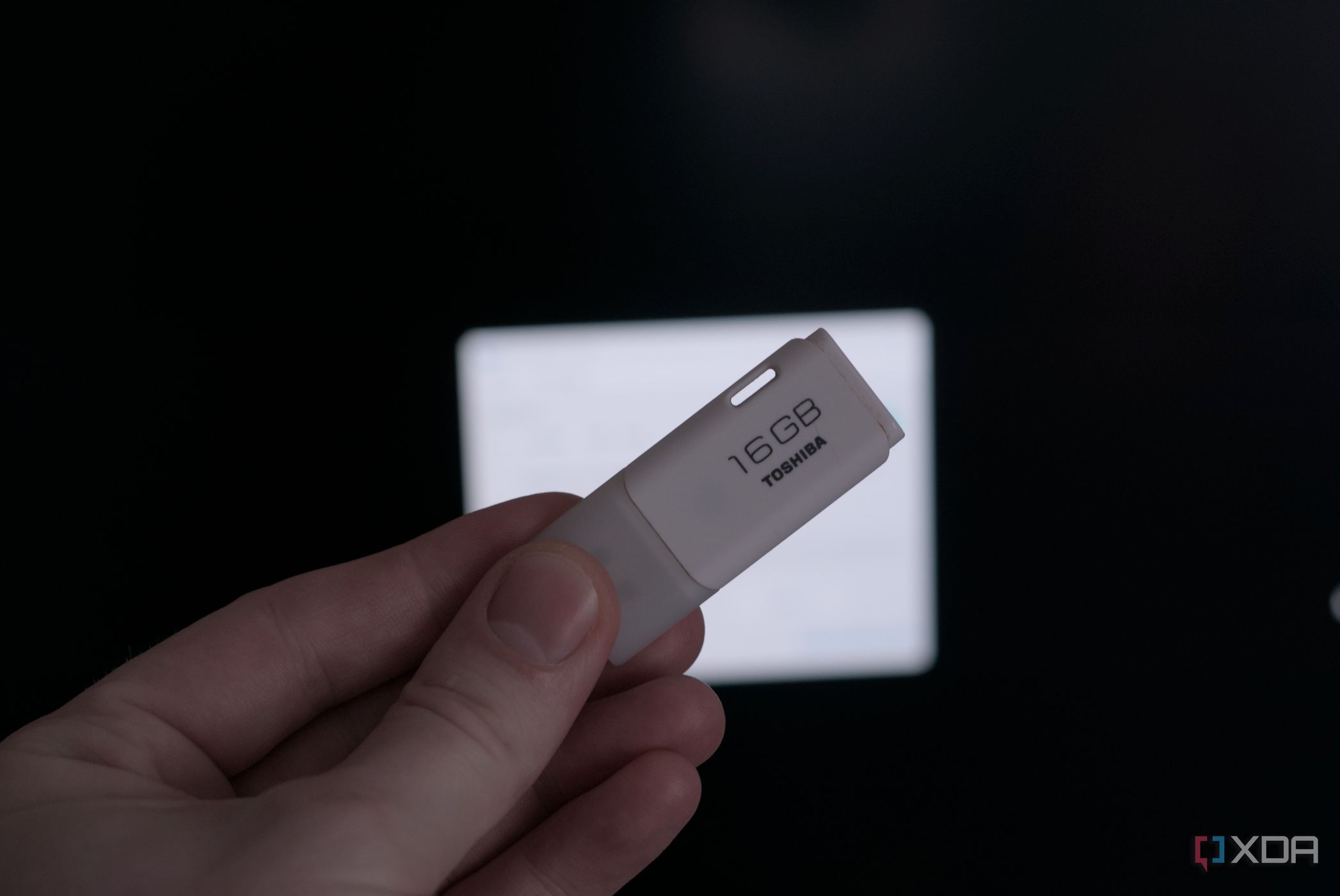
In my years of building PCs and writing about consumer tech, I’ve built and fixed several PCs for friends and family. I’ve embraced the dreaded resident tech support role in my circles, and as a result, my life shares similarities with corporate system administrators now. I’ve seen that worried helplessness too many times when PCs won’t boot and users are left helpless. So now, I show up with a single fix-all bootable USB drive packed full of powerful ISOs and diagnostic and recovery tools. This digital Swiss Army knife easily puts a Windows installation stick to shame. The secret sauce is a nifty little tool called Ventoy. If you’re still painstakingly flashing a single ISO to a drive with Rufus every time you need a different tool, you’re living in the dark ages. Ventoy formats a drive once, then lets you simply drag and drop as many bootable ISOs as you can fit onto it. On my 128GB stick, I have multiple Linux distros, a Windows installer, specialized recovery environments, and MemTest86, all selectable from a simple boot menu. The other half is a folder packed with portable diagnostic apps I can run on any sluggish or misbehaving Windows machine. I can go from running a memory diagnostic to booting into a live Linux environment to recover files in minutes, without carrying my laptop on scene. These are the tools that help me look under the hood.
LatencyMon and SanityCheck
The stability sleuths from Resplendence
LatencyMon is a highly specialized utility designed to find out if a system is suitable for handling real-time audio, but its diagnostic power goes far beyond that. It checks for issues with kernel timer latencies and identifies which driver is causing excessive DPCs (Deferred Procedure Calls) and ISRs (Interrupt Service Routines). These prove invaluable for fixing PCs that seem to stutter even during the most basic tasks. Leave LatencyMon running for an hour, and you’ll find a summary with the exact process adding the longest interrupt time. This usually points to misbehaving drivers that cause the mysterious audio dropouts and system-wide micro-stutters. For systems that have gone past stuttering and straight into full-blown Blue Screens of Death (BSODs), I pull out LatencyMon’s sibling, SanityCheck. It’s a rapid-fire crash dump analyzer. Instead of digging into the cryptic mess of WinDbg, I can point SanityCheck at the minidump files Windows creates after a crash. In seconds, it gives me a concise, human-readable report that often points directly to the misbehaving driver or kernel module responsible for the system’s untimely demise, even malware. It’s the perfect first-responder tool for crash analysis. While SanityCheck provides a quick verdict, for truly complex and recurring crashes, it’s only a starting point. A deeper dive with more advanced debugging tools might still be necessary to understand the root cause.
HWiNFO
The all-seeing eye
Before I even think about running a stress test or changing a setting, I want a complete inventory of what I’m working with and how it’s behaving. HWiNFO is a comprehensive system information tool that tells me everything of importance, including the motherboard model, CPU revision, memory timings, and GPU specs. Without this information, any troubleshooting is just a shot in the dark. However, HWiNFO really shines with real-time sensor data monitoring and logging. I can see a detailed dashboard of every temperature sensor, fan speed, voltage reading, and clock speed in the system. If the machine shuts down randomly under load, I can watch CPU core temps here and pinpoint thermal throttling. Games crashing could be the GPU struggling with heat. Unfortunately, the sheer volume of information HWiNFO provides can be its own worst enemy making the tool overwhelming for a novice user. Moreover, interpreting the data is entirely manual and dependent on the experience level of the troubleshooter.
Individual pricing
Free
Platforms
Windows, DOS
CrystalDiskInfo and TreeSize Free
For storage spiraling out of control
Storage is one of the most common things that bogs down the responsiveness on Windows PCs. Mismanagement can range from a cluttered desktop to an overburdened OS drive or a failing drive. The latter can lead to data corruption, system crashes, and eventually, a complete inability to boot. CrystalDiskInfo tackles drive health, and TreeSize Free ensures storage is used judiciously. CrystalDiskInfo is a simple, brilliant utility that reads a drive’s S.M.A.R.T. (Self-Monitoring, Analysis, and Reporting Technology) data and gives you an immediate, easy-to-understand health status on a three-point scale of Good, Caution, and Bad. A rise in reallocated sectors or other wear indicators triggers the Caution status, and I immediately rush to back up the stored files. It can see death coming for an SSD or HDD long before Windows sounds an alarm. That said, SMART data isn’t a foolproof indicator of drive stability and reliability. On healthy drives, users are often oblivious to what’s hogging their storage space. TreeSize scans a drive and presents a visual, hierarchical view of which folders and files are consuming the most space. In minutes, I can track down a 100GB forgotten game installation, a massive collection of unedited video files on the desktop, or a temp folder that has bloated to an absurd size. It takes the guesswork out of cleaning up a cluttered drive. I just double-check to ensure system-critical files aren’t nuked by accident.
MemTest86
The RAM torture tester
Credit: MemTest
Bad memory is the ghost in the machine. It can manifest as random blue screens, inexplicable application crashes, corrupted files, or a system that fails to POST altogether. Troubleshooting RAM issues within Windows is notoriously unreliable because the OS itself is using the memory you’re trying to test. The only way to be sure is to test it from a bootable environment with MemTest86. This fits perfectly in my Ventoy drive as a bootable thing, and I can’t just plug the drive in to run it. MemTest performs grueling, low-level tests, writing and reading patterns for every single addressable part of your system memory. It’s designed to find even the smallest, most intermittent faults that might only occur under very specific conditions. If a system passes a full run of MemTest86, you can safely rule out RAM as the root cause. Unfortunately, a single pass on a system with a lot of RAM can take several hours, making it impractical for a quick “in-and-out” job. Furthermore, while it’s excellent at finding faulty RAM sticks, it can’t always diagnose more subtle issues like an unstable memory overclock, a compatibility issue with the motherboard, or a problem with the CPU’s integrated memory controller. Again, these are left to the system administrator’s brilliant judgement.
WinfrGUI
For when all is lost and we’re picking up the pieces
If a PC suffers critical failure due to accidental partition deletion or if the user accidentally deletes files they actually needed, saving the day feels truly cathartic, and WinfrGUI has been my go-to for some time now. It’s essentially a user-friendly graphical interface for Microsoft’s own command-line Windows File Recovery tool. The official tool is powerful but requires wrestling with arcane command-line syntax, which is the last thing you want to do in a stressful data-loss situation.
WinfrGUI simplifies the process immensely. You select the drive you want to scan, choose a location to save the recovered files, and let it run. It offers different scan modes—a quick scan for recently deleted NTFS files and a deep scan that scours the entire drive for file signatures, which can recover data even after a format. Having this as a portable app is key. I can run it from my USB stick without installing anything on the affected system, which is critical to avoid overwriting the very data I’m recovering. It’s my last-ditch effort to pull precious photos or documents back from the brink. That said, file recovery is never guaranteed since chances grow slimmer every time the originally allocated space is overwritten with new data.
Preparedness saves time and sanity
Ultimately, troubleshooting PCs requires a clear methodology to contain the damage and initiate recovery, and for the troubleshooter, having the right tools on hand is essential. Having this curated toolkit on a single, multi-boot USB drive saves me precious time and many headaches when figuring out what went wrong and trying to undo the damage. Without them, tech support would remain an unsolvable puzzle.
Diterbitkan : 2026-07-07 21:30:00
sumber : www.xda-developers.com