
Your Wi-Fi 7 upgrade didn’t fix your lag because the bandwidth was never the problem
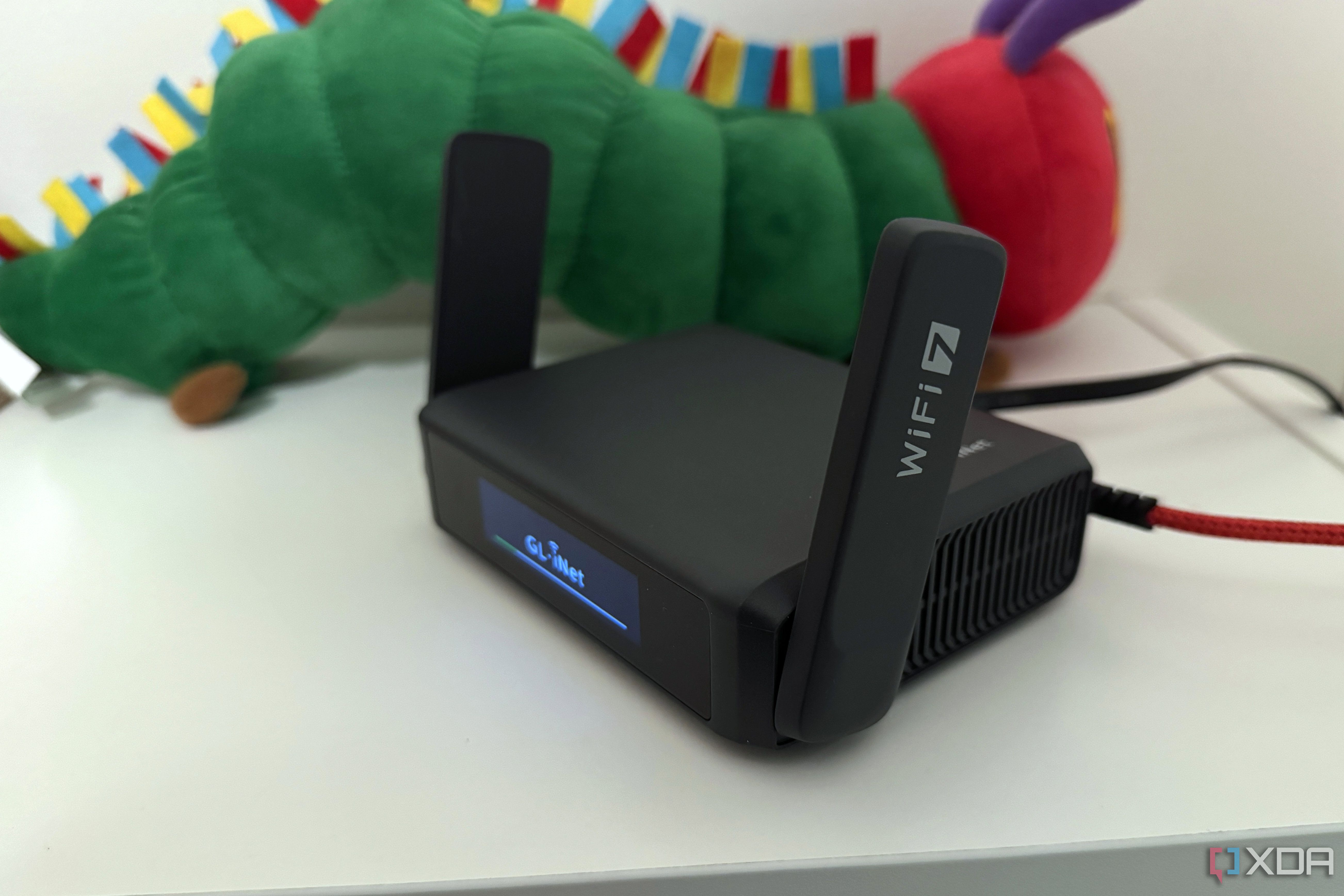
So, you just got a new Wi-Fi 7 router, hoping to leave the dark ages of Wi-Fi 6 and 6E behind. The massive improvements in bandwidth and reliability, thanks to 4K QAM, MLO, and 320 MHz channel width, promised a dramatically snappier connection, at least according to the router’s marketing. The reality is probably that the network doesn’t feel any different on any of your devices, and the tiny but noticeable lag is still there on your phone, PC, and smart TV. It’s probably because speed was never the bottleneck on your Wi-Fi in the first place. Your Wi-Fi 7 router might be capable of blistering speeds powered by high-bandwidth internet plans, but bandwidth alone doesn’t ensure a fast connection. Wi-Fi that actually feels fast needs to be free from congestion, interference, and latency. A Wi-Fi 7 router alone doesn’t solve all these issues. You also need to ensure that older devices on the network aren’t slowing everything down, and your Wi-Fi isn’t fighting with other networks. Even the default settings configured by your ISP can introduce latency while browsing the web. Once you address each of these areas, your Wi-Fi will finally breathe.
Related
I stopped chasing Wi-Fi upgrades and fixed my network without spending a penny
You don’t need new equipment to fix your Wi-Fi.
Your slower devices are creating airtime congestion
Wi-Fi 7 isn’t immune to airtime woes
Most of us tend to point fingers at large downloads or uncompressed 4K streams whenever the Wi-Fi starts to slow down. You think someone in the household is hogging all the bandwidth, leaving little to spare for your doomscrolling or online gaming. Homes with entry-level internet plans can actually face a shortage of bandwidth, but these days, most households, at least in the US, enjoy connections with 300 Mbps or higher bandwidth. Gigabit plans are becoming increasingly common, and you don’t even need a Wi-Fi 7 router to support these high-speed plans. So, the raw speed of your Wi-Fi connection isn’t the bottleneck you think it is. The silent factor making your Wi-Fi sluggish is your smart home stack and other slower devices. Almost all of your smart plugs, bulbs, doorbells, speakers, and security cameras are still using the 2.4 GHz band for maximum range and penetration. This works well for your smart home, but the ceaseless multicast, coordination, and outbound traffic from these devices tend to clog your router’s CPU. Thousands of packets are broadcast by your smart home every minute, and this additional traffic, although not bandwidth-intensive, consumes airtime on your Wi-Fi network all the same. All of this occurring on the slower 2.4GHz network compounds the issue, as your faster devices wait in line behind the smart devices, giving rise to the sluggish Wi-Fi experience you’re familiar with. Even many smart TVs still use older Wi-Fi chipsets and don’t release airtime as efficiently as modern devices. Even if the entire household is asleep, your smart devices never stop transmitting. The problem only worsens as everyone wakes up and brings more and more of these devices online. You can put your smart devices on a separate VLAN, so that the additional traffic doesn’t make things worse on the main network. Skipping Wi-Fi altogether in favor of Zigbee or Thread will work even better, but that involves a huge investment to buy new devices, so it isn’t feasible for everyone.
Related
The smarter your home, the more your Wi-Fi struggles — here’s what to do about it
Your smart home is a constant background hog on your Wi-Fi
Your channel and width selection are probably sub-optimal
Check your router’s settings before blaming your Wi-Fi speed
The wireless channel in use by your router is probably ignored by the average user. As long as you’re getting the speeds advertised by your internet plan, you tend not to think too much about the router’s settings. However, the “lag” on your Wi-Fi network might just be due to subpar channel settings. Despite upgrading to a Wi-Fi 7 router, the default channel selection might have you on one of the overlapping channels on the 2.4 GHz or 5 GHz band. The 6GHz band on Wi-Fi 7 (or even Wi-Fi 6E) isn’t available on every device, so most of your household is probably still on the 2.4 GHz and 5 GHz bands. Hence, it’s very possible that your neighboring networks on the same crowded channel are causing interference with your Wi-Fi, appearing in the form of network latency, which makes your connection feel sluggish. The other part of the story is the channel width. Your new Wi-Fi 7 router might have access to 320 MHz channels, but very few devices actually support it. Most modern devices limited to Wi-Fi 6 and Wi-Fi 6E can still access 160 MHz channels, but wider channels aren’t universally faster. Your Wi-Fi 7 router might have your devices on the wider 160 MHz or 80 MHz channels, but if you’re living in an apartment complex or otherwise crowded urban environment, these wider channels do more harm than good. They increase the network throughput, but they’re also more prone to interference. 160 MHz and 320 MHz channels are only recommended in uncongested environments with minimal neighboring networks. Most people should use 80 MHz or 40 MHz on the 5GHz band, and 20 MHz on the 2.4 GHz band to minimize interference and latency.
Related
You’re wrecking your Wi-Fi speeds by ignoring the one setting nobody talks about
Channel width can seriously impact your Wi-Fi performance
Your ISP’s default DNS server is slowing you down
The impact on performance is small but noticeable
This is something people rarely know or think about as far as perceived Wi-Fi performance is concerned. The DNS settings your devices use to resolve website names to IP addresses can impact your Wi-Fi’s speed, albeit to a small extent. Most people never change the default DNS address configured by their ISP, leaving their traffic behavior exposed. Your ISP can use this data to send targeted ads your way and even block certain websites. However, the speed impact on your browsing experience is also a concern when using the default DNS address. Even on a fast Wi-Fi 7 network, the minor delay as a website loads on your phone or PC can make your Wi-Fi feel slower in practice. Replacing the default DNS can minimize this delay, as is evident when using Cloudflare, Google, NextDNS, Quad9, or AdGuard, depending on your location. You can visit DNS Speed Test to find the fastest DNS server for your location.
Alternatively, you could set up a local DNS server using SmartDNS, Technitium, or other tools for more control over your traffic and reduced dependence on external servers. This way, you’re not trusting anyone’s privacy and security policies, using a DNS resolver you can run on your own hardware instead.
OS
Linux
Price model
Free
Pi-hole is a network-wide ad blocker that acts as a DNS sinkhole, preventing unwanted ads, trackers, and malicious domains from loading on any device connected to your network. It runs on lightweight hardware, such as a Raspberry Pi or in a virtual machine. By intercepting DNS queries, Pi-hole blocks ads before they ever reach your browser or apps, improving speed and privacy. It also provides an easy-to-use web interface for monitoring and managing network traffic.
Related
Setting up local DNS was the single easiest network upgrade I’ve ever made
Bringing it all in-house.
Modern Wi-Fi problems are rarely linked to insufficient bandwidth
We now have internet plans fast enough that a lack of raw speed is rarely the culprit behind sluggish Wi-Fi. Network latency, congestion, and interference are almost always behind the “sluggish Wi-Fi” you’re plagued with. Isolating problematic devices on a separate virtual network, tweaking the channel settings on the router, and replacing your ISP’s default DNS server will improve your Wi-Fi performance, even if the speed test reports the same results.
Diterbitkan : 2026-07-11 12:00:00
sumber : www.xda-developers.com